Edit Existing Watchlists
Edit Existing Watchlists
Your trading focus shifts over time. ORB Setups lets you update your watchlists at any point, so you can add new symbols, remove ones you’re no longer tracking, or reorganize your lists to match your current strategy.
This guide walks you through editing any watchlist in the ORB Setups platform.
Access Your Watchlists
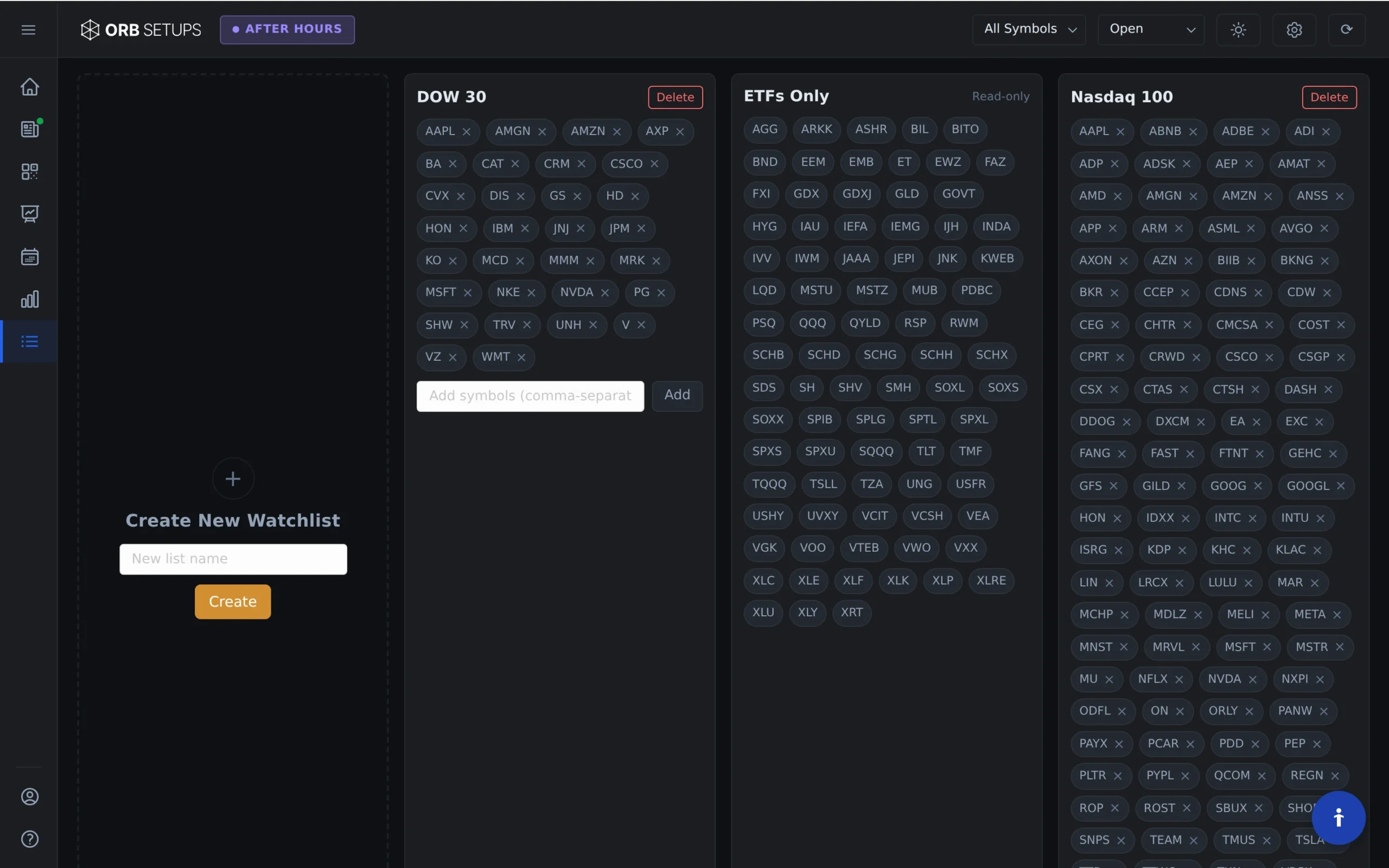
Open the ORB Setups platform and navigate to the Watchlists page. You’ll see all your saved watchlists listed here, along with the symbols in each one.
Open the Edit Menu
Locate the watchlist you want to modify. Hover over the settings icon (gear) next to that watchlist’s name, then click Edit.
This opens the edit view for that specific watchlist, where you can make changes to its symbols.
Remove Symbols from a Watchlist
To delete a symbol from your watchlist:
- Find the symbol you want to remove
- Click the X icon next to that symbol
- The symbol will be removed from your list
You can remove multiple symbols at once before saving. The scanner covers 600+ stocks and ETFs, so you have plenty of options if you want to swap symbols for new ones.
Save Your Changes
After making your edits, click the green checkmark in the top right corner of the edit box. This saves all your changes.
Your updated watchlist will now appear with the modified symbols. The scanner will continue refreshing data every 2 seconds for all symbols in your watchlist across 5, 15, and 30-minute timeframes.
Tips for Managing Watchlists
- Keep lists focused: Create separate watchlists for different strategies or sectors rather than one large list
- Review regularly: Remove symbols that no longer fit your criteria or trading style
- Use historical data: Check backtest results from 150,000+ historical setups and 1.6M backtested trades to decide which symbols belong in your active watchlists
Your watchlists are saved to your account, so any changes you make will be available the next time you log in.