Add Symbols to a Watchlist
Watchlists help you focus on the symbols that matter most to your trading strategy. Instead of scanning through 600+ symbols, you can track a curated group and see their ORB setups update every 2 seconds.
Adding new symbols to an existing watchlist takes just a few clicks. Here’s how to do it.
How to Add Symbols to a Watchlist
Step 1: Open the Watchlist Settings
Find the watchlist you want to update in your dashboard. Hover over the settings icon (gear) next to the watchlist name to reveal the editing options.
Step 2: Click the Add Button
Click Add to open the symbol editing panel. The panel will appear on the left side of your screen.
Step 3: Confirm Your Watchlist
Before adding symbols, verify you’re editing the correct watchlist. The watchlist name appears at the top of the editing panel.
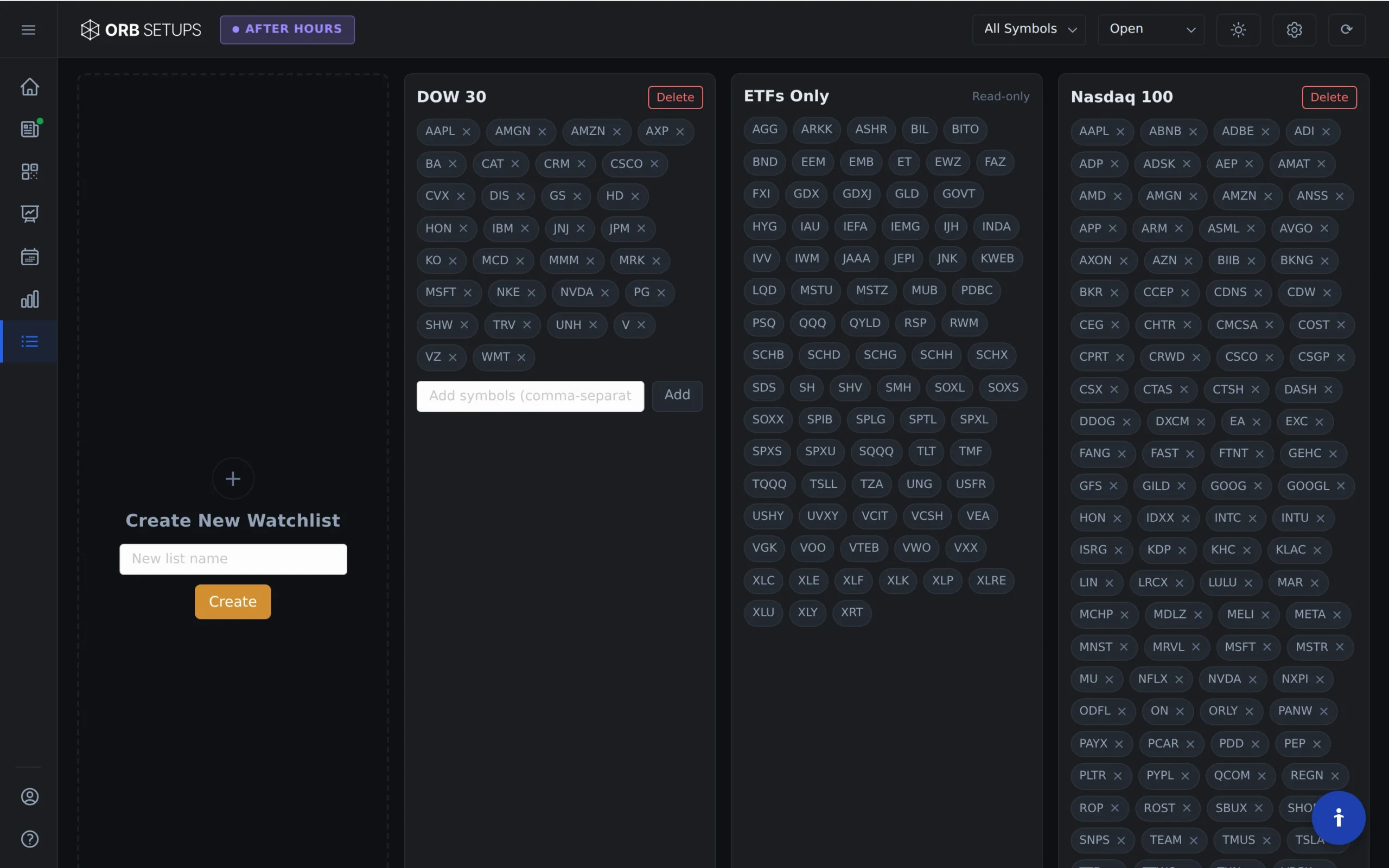
Step 4: Enter Your Symbols
Type the ticker symbols you want to add. You can enter multiple symbols separated by commas or add them one at a time. The platform supports 600+ stocks and ETFs across all major U.S. exchanges.
Step 5: Save Your Changes
Click Add Symbols to save. Your new symbols will appear in the watchlist immediately and start receiving real-time ORB data with 2-second refresh.
What Happens After You Add Symbols
Once added, your symbols will display:
- Live breakout detection across 5-min, 15-min, and 30-min opening range timeframes
- Historical win rates based on 150,000+ backtested setups
- Trade expectancy data from 1.6M backtested trades
- Real-time updates every 2 seconds during market hours
Tips for Building Effective Watchlists
Consider organizing your watchlists by sector, market cap, or trading strategy. Some traders create separate lists for high-volume names, ETFs, or symbols with historically strong ORB performance.
You can create unlimited custom watchlists, so feel free to experiment with different groupings to find what works best for your approach.